
Edit a website and save a private draft
Review changes before replacing the published version on Basic or Pro.
Open the project editor
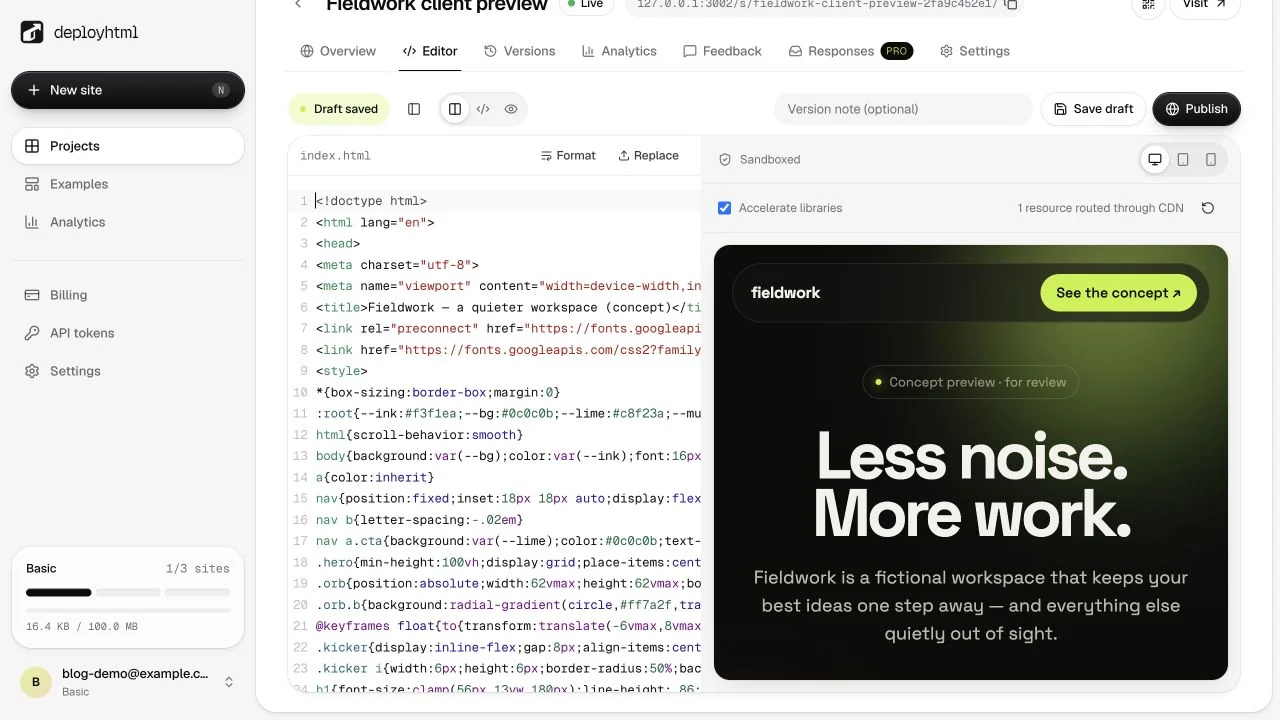
In your workspace, open the project and choose Editor. Basic and Pro include the online editor. Choose a file, edit its source and inspect the isolated preview. Layout controls let you focus on code, preview or both.
Save without publishing
Choose Save draft to retain your work privately. Visitors continue seeing the active published deployment. Saving a draft does not make it public and does not require sending a different website link.
Keep a separate local copy of important unsaved edits, particularly before switching browser tabs, refreshing or comparing work from several sessions. Saving privately and publishing are separate actions.
Preview deliberately
Check desktop and mobile layouts, then exercise the main interaction. Inspect preview issues for resource or JavaScript failures. Sandbox restrictions mean a preview alone cannot confirm external email, payment or data-collection services work.
Publish when ready
Add an optional version note and choose Publish. Then open the public URL in a separate browser session. The same project address now serves the active revision.
If you see a version conflict, compare your intended revision with the latest source before retrying. For retained history and restoring older files, read versions. For a new multi-file package, use ZIP upload.
Last updated on