
Sign in and manage your account
Use Google or an email verification code to return to your workspace.
Choose a sign-in method
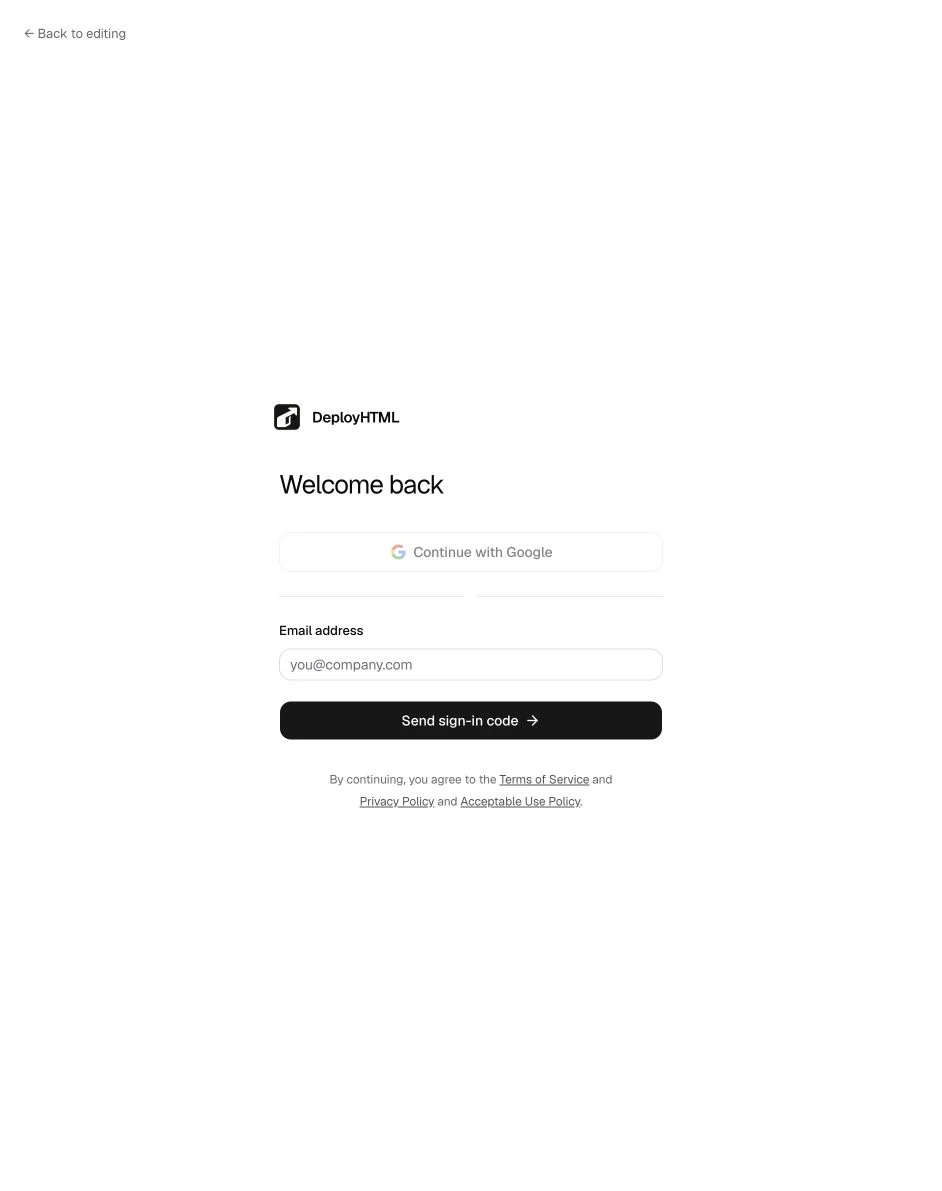
Open Log in. Use the available Google sign-in option, or request an email verification code. For email sign-in, enter the six-digit code from the message before it expires. You can change the email or request another code through the sign-in flow.
Return to prepared work
If you started by pasting HTML or choosing files, sign in through that publishing flow. Review the restored input when you return and explicitly publish it. Authentication alone does not publish a website or make a payment.
If you cannot sign in
Check the exact email address and your spam folder. Use the newest intended code and avoid repeated requests while waiting. For a Google error, preserve the visible error text and the step where it occurred; never send an authorization code, password or token to support.
A code request succeeding does not establish inbox delivery. A Google account being selectable does not prove that every OAuth step succeeded. Use the visible returned workspace/account state to confirm the sign-in result.
Account and data requests
Review account settings for the signed-in identity. For deletion, data export or an account access problem, use the contact page or workspace support when you can sign in. Do not submit sensitive records into a public hosted example.
Last updated on