
Publish an HTML page
Paste or upload a complete HTML document, preview it and share its URL.
Prepare one complete document
Open your file locally first. Include a document title, a viewport tag, the styles and browser JavaScript the page needs. Remove private notes and credentials. Visitors can inspect any files a public website delivers.
<!doctype html>
<html lang="en">
<head>
  <meta charset="utf-8">
  <meta name="viewport" content="width=device-width, initial-scale=1">
  <title>My first page</title>
</head>
<body><h1>Hello, world.</h1></body>
</html>
Paste or upload
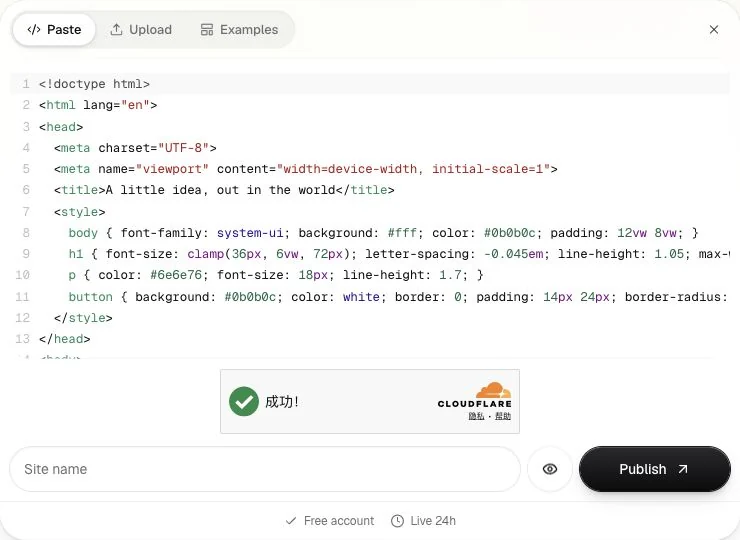
Open HTML to link. Paste the document without Markdown code fences, or choose Upload for an HTML file. Add a recognizable site name. Use a ZIP when your document references separate files.
Preview before publishing
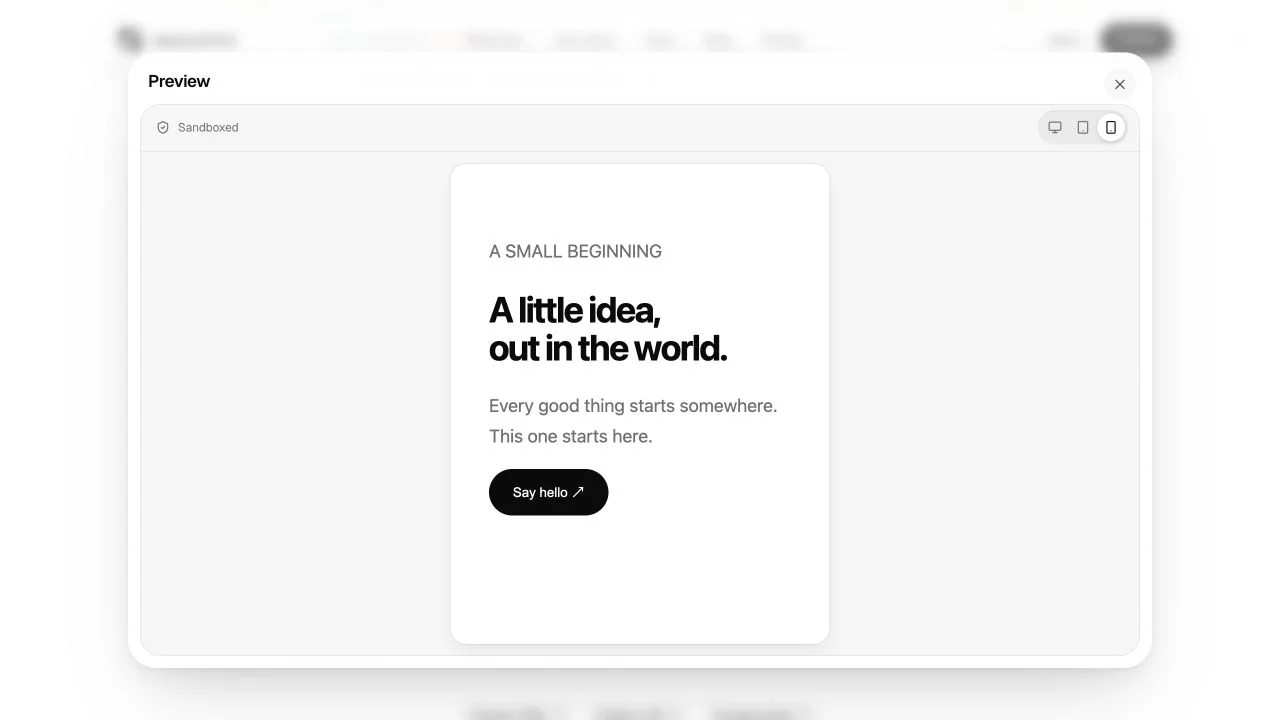
Choose Preview, then check desktop and mobile sizes. Test self-contained interactions and look for preview issues. The sandbox restricts network access and form submissions, so external integrations need a separate check on the published URL.
Publish and verify
Sign in when prompted, return to the prepared input and choose Publish. Copy the website link and open it outside your workspace session. Confirm that it renders and the main interaction works.
Free links last 24 hours. For revisions, update the same project to keep its URL. If the page is blank or unstyled, follow blank pages or missing assets.
Last updated on