
Collect feedback on an AI prototype without reviewer accounts
Publish a small HTML prototype, enable visitor feedback, verify the owner receives it, and revise the same project. Follow an original local demonstration.
DeployHTML team · 6 min ·
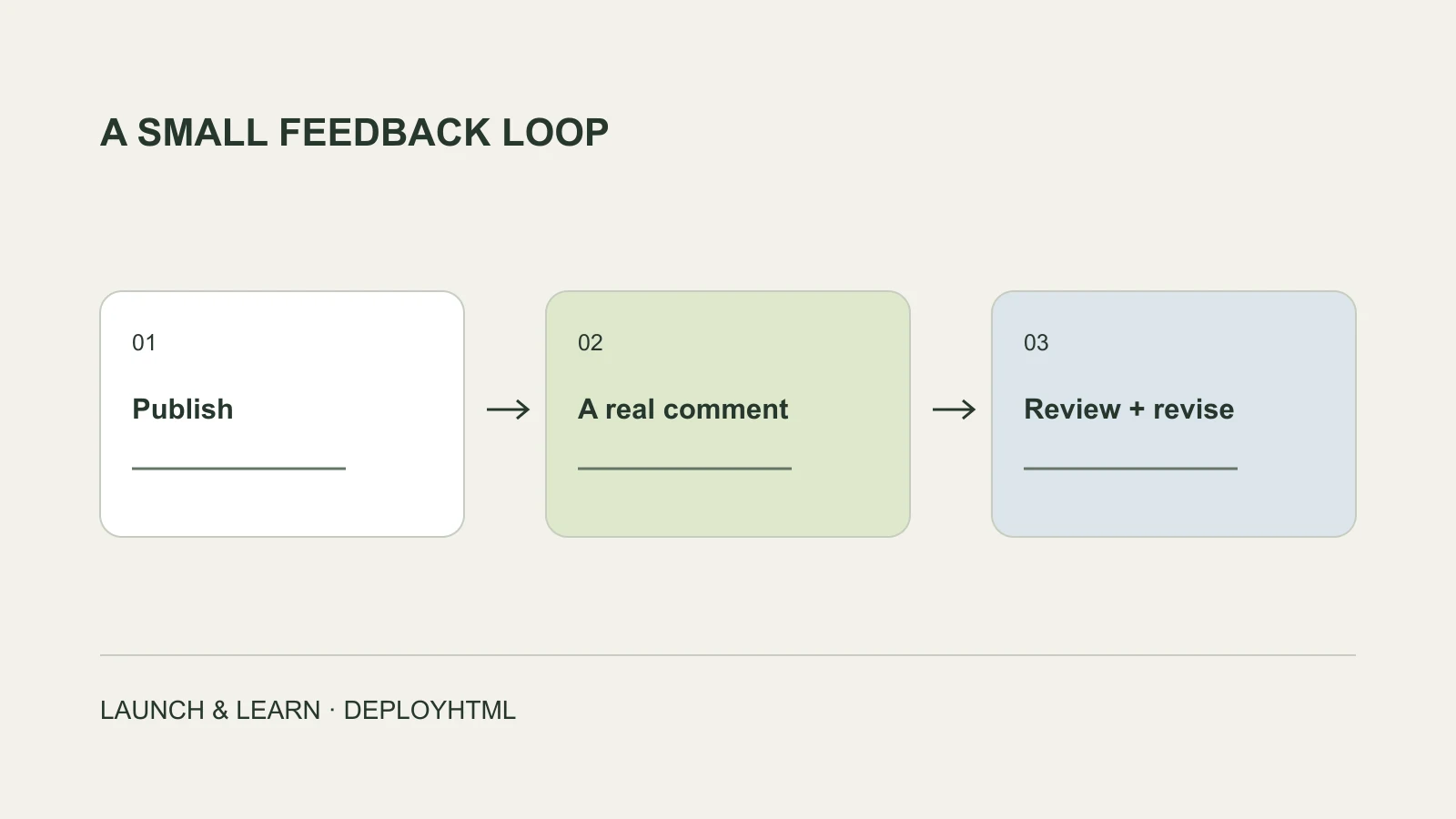
Give reviewers a usable page and one clear question
To collect feedback on an AI prototype, first publish a browser-ready page, then enable and test a feedback channel. On an eligible DeployHTML plan, Feedback mode lets a visitor send a comment without creating a DeployHTML account. The owner reviews the comment privately.
Start with a decision rather than a request for general opinions. For a service concept, ask whether the next step is clear. For a calculator, ask whether the inputs match the user’s task. You will learn more from a concrete attempt than from a screenshot with “thoughts?” underneath it.
The example in this guide is an invented small studio offering a project review. Its button reveals notes in the browser. It does not reserve a time or send an inquiry. That distinction gives reviewers something specific to try without implying an unfinished service is already operating.
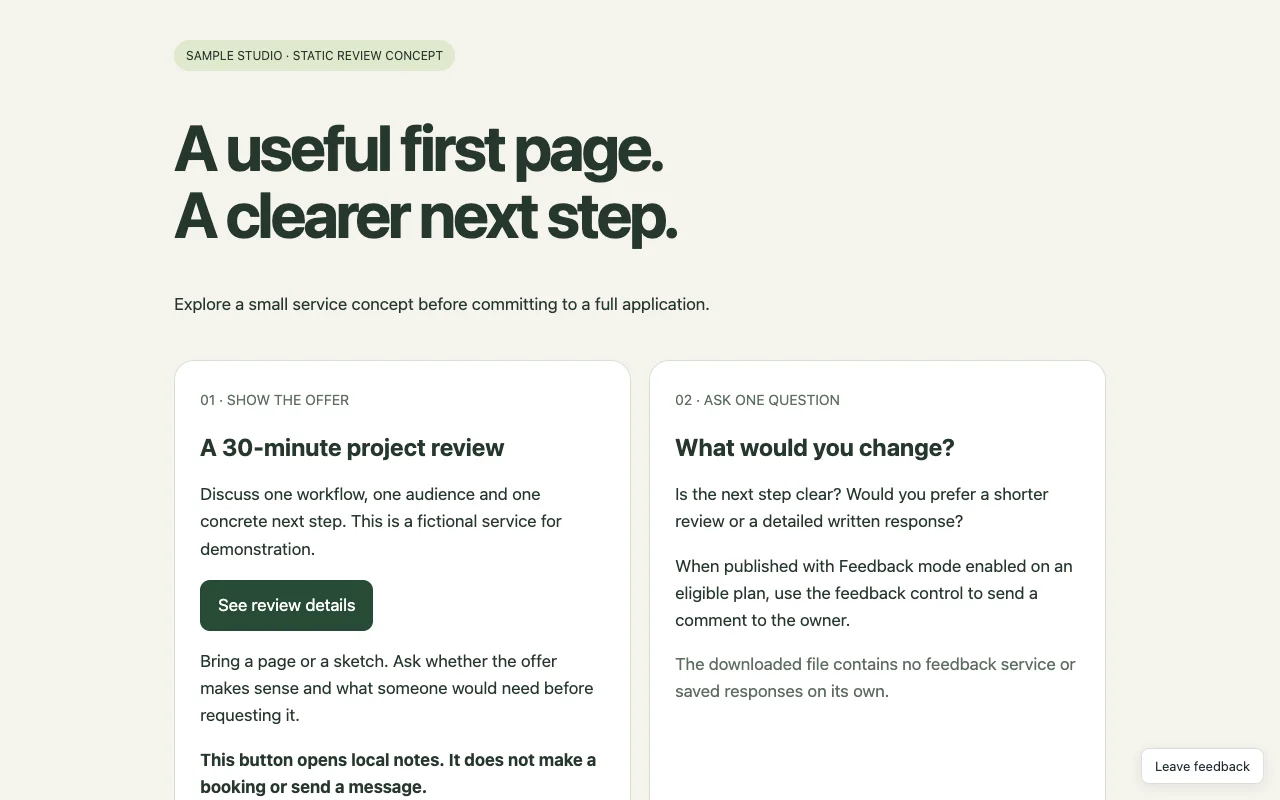
Prepare the prototype you intend people to review
Use a complete HTML document or a finished static build. Keep separate CSS, JavaScript and images together in the ZIP. If an AI tool gives you JSX, TypeScript or a source repository, build the browser-ready output first.
Check every action you intend to show. Mark sample numbers, invented offers and unsaved forms visibly. Remove private records and credentials. Feedback about a working local interaction is different from feedback about a mockup of a backend feature.
For the supplied example, open the ZIP and find index.html. You can publish it unchanged as test content, or replace the text with your own legitimate concept. Keep a copy of the source outside the hosting account.
Publish, then enable Feedback mode
Open HTML to link, upload or paste the finished page, sign in and publish. Open the resulting website separately before inviting reviewers. Check its main action and narrow layout.
Feedback mode requires an eligible Basic or Pro plan. In the project settings, enable it and reopen the public page. The publishing service adds the visitor control; the downloadable HTML example does not contain a feedback backend by itself.
For this guide we used an isolated local Basic-plan fixture and the actual publishing and feedback endpoints. No plan purchase, real customer invitation or production security challenge was performed. The screenshots show that local workflow, rather than a simulated success message.
Leave a test comment as a visitor
Use a separate browser session that has no owner login. Open the published prototype, choose Leave feedback and submit a short comment. For the example, we used “The next step is clear, but please explain what happens after the review.”
Confirm that the submission completes. A form that merely changes its label to “sent” is not enough. Production intake also applies security and rate controls, so verify the real environment you will use before sending it to participants.
You can give reviewers a link and one task through your normal communication channel. Do not promise a public discussion or an email reply from this feature: submitted feedback is for the site owner.
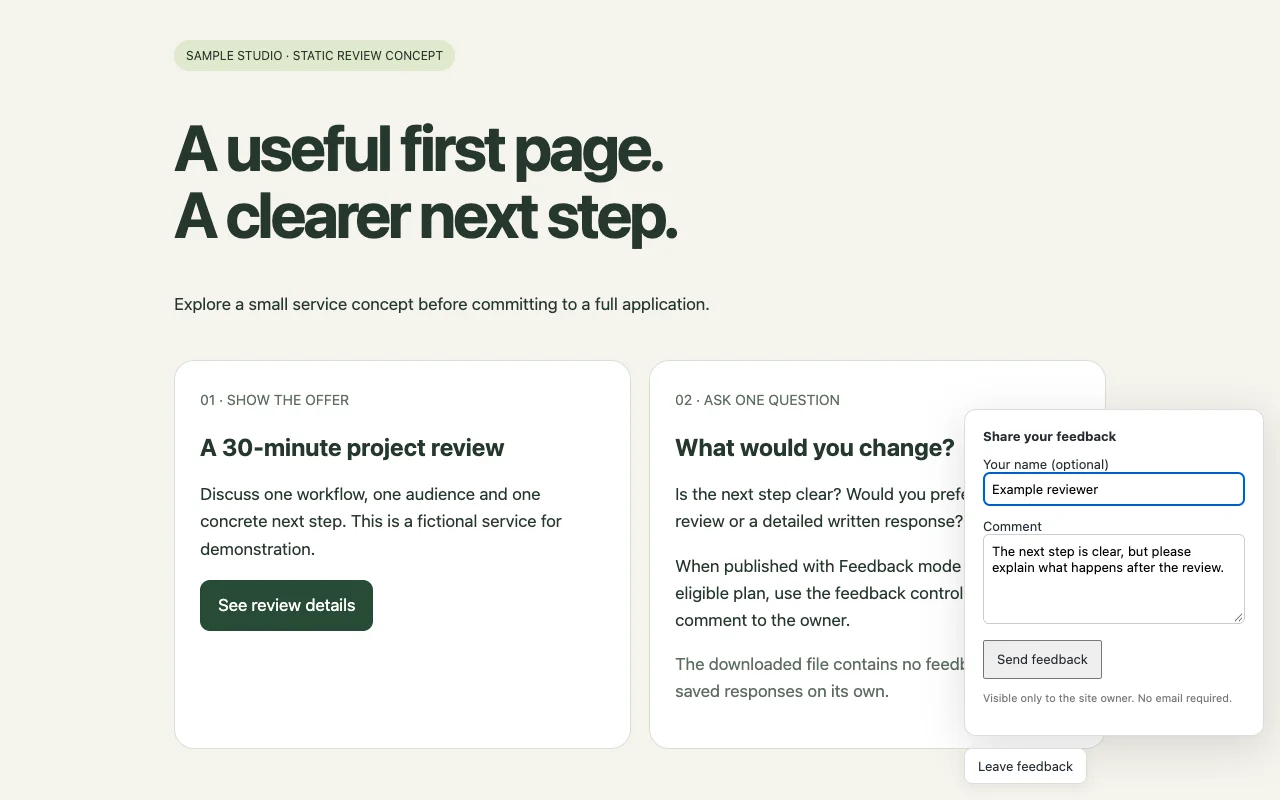
Find the comment in the owner workspace
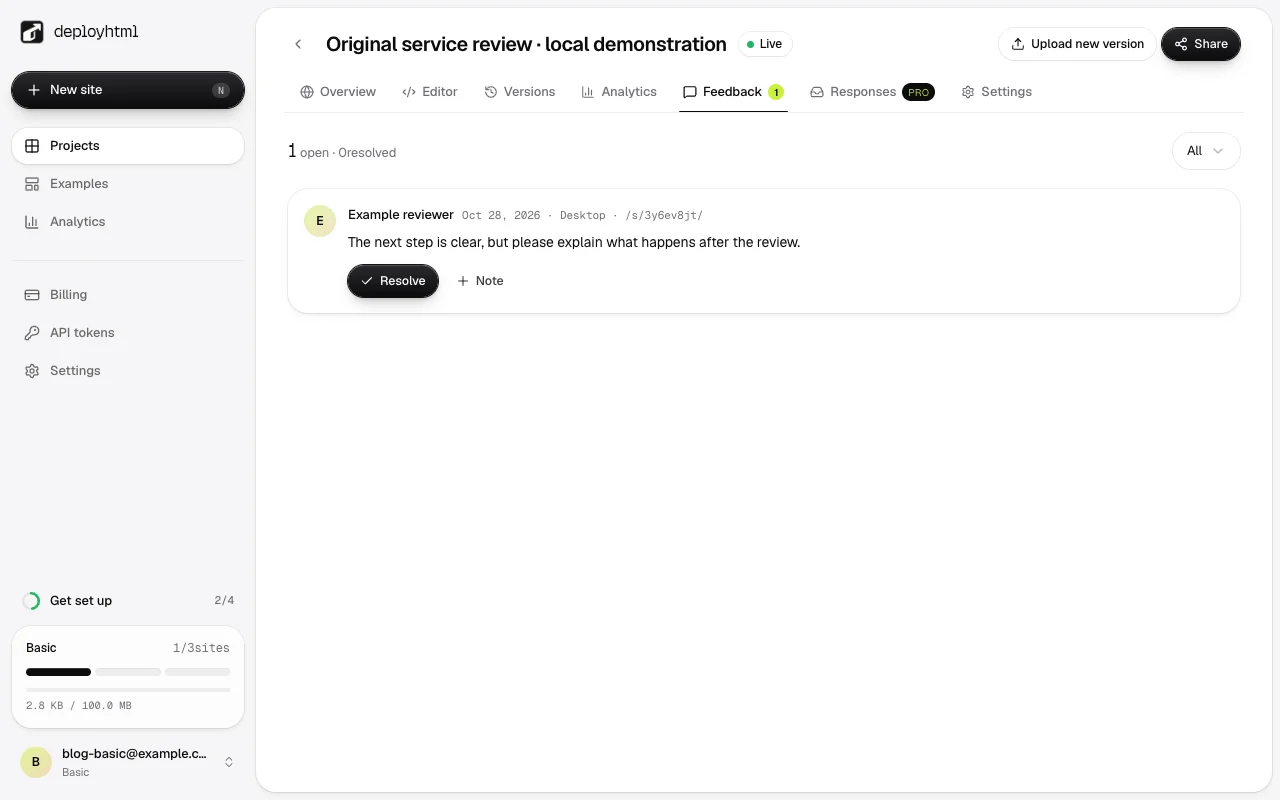
Open the project’s Feedback tab and find the submitted text. Read it alongside its page and deployment context. An observation from an earlier version may describe something you have already changed.
In our local check, the visitor’s comment was retrieved from the owner feedback endpoint and appeared in the actual owner interface. That is the evidence of receipt; the visitor confirmation alone is only one step.
Keep unstructured comments separate from structured research answers. If you need required fields or CSV responses, configure and verify a form workflow instead. Neither a general comment nor a click is a confirmed booking.
Make one revision and review the same link
Turn the useful feedback into one change. In the example, that might mean explaining the follow-up before the visitor asks for a review. Publish to the same project so the address remains useful, then reopen it as the recipient.
Keep a short note about what changed and which question remains. A comment count is not a demand score, and a positive remark does not prove someone will buy. Pair what people say with the behavior your task actually needs.
Plan around the hosting lifetime. Free sites last 24 hours and do not include paid feedback; re-uploading does not restart the clock. A continuing review needs a suitable available plan and its current limits.
Put it into practice
Your next link starts here.
Try the original example, then publish your own static files.