
How to Share a Service Proposal as a Web Page
Share a service proposal online with clear scope, options, supporting materials and a focused request for feedback.
DeployHTML team · 8 min ·
Start with the decision your visitor needs to make
To share a proposal online, prepare a clear document, publish it through an arrangement that suits its content and review period, then test the link as the recipient. The page should make the scope, options, and next conversation easy to understand.
An existing HTML service proposal can work well for this. It can bring text, authorized photographs, and comparison tables into one browser page without asking the recipient to open the source files.
Decide what you want the page to do before adding controls. A proposal for discussion needs a different workflow from a document that must be formally approved, signed, or paid.
1. Define the review you are asking for
A static page can present a scope and invite a conversation. Publishing the HTML does not create a signature workflow, book an appointment, record acceptance, or collect payment. Those actions require suitable services and configured connections.
For an initial review, choose one concrete request:
Avoid a button labeled “Approve” when it only changes the text on the screen. If approval belongs in another system, explain that next step and link to the configured destination.
A service-business platform may be a better fit when requests, quotes, scheduling, invoices, and customer records need to stay connected. An HTML page serves the narrower job of presenting information for review.
- Confirm whether the proposed scope matches the work being discussed.
- Ask which optional services need more detail.
- Identify missing information before you prepare a revised version.
- Arrange a discussion through an existing contact or booking channel.
2. Give the proposal a useful reading order
Build the page around the questions the recipient needs answered.
Use specific headings. “Exterior window cleaning” gives more information than “Our solution.” Keep optional work separate from the base scope so a reader cannot easily mistake it for something already included.
A reusable service proposal template can provide this structure. Your prices, conditions, and project details still need to come from your business and the work you have actually discussed.
| Section | Question it should answer |
|---|---|
| Title, version, and date | Which proposal am I reviewing? |
| Project summary | What are you proposing to help me do? |
| Scope | What work is included? |
| Exclusions and assumptions | What is outside this proposal, or still needs checking? |
| Options | What choices are available, and what changes between them? |
| Timing | What needs to happen before the work can begin? |
| Next step | How should I ask a question or discuss a revision? |
3. Make the scope concrete
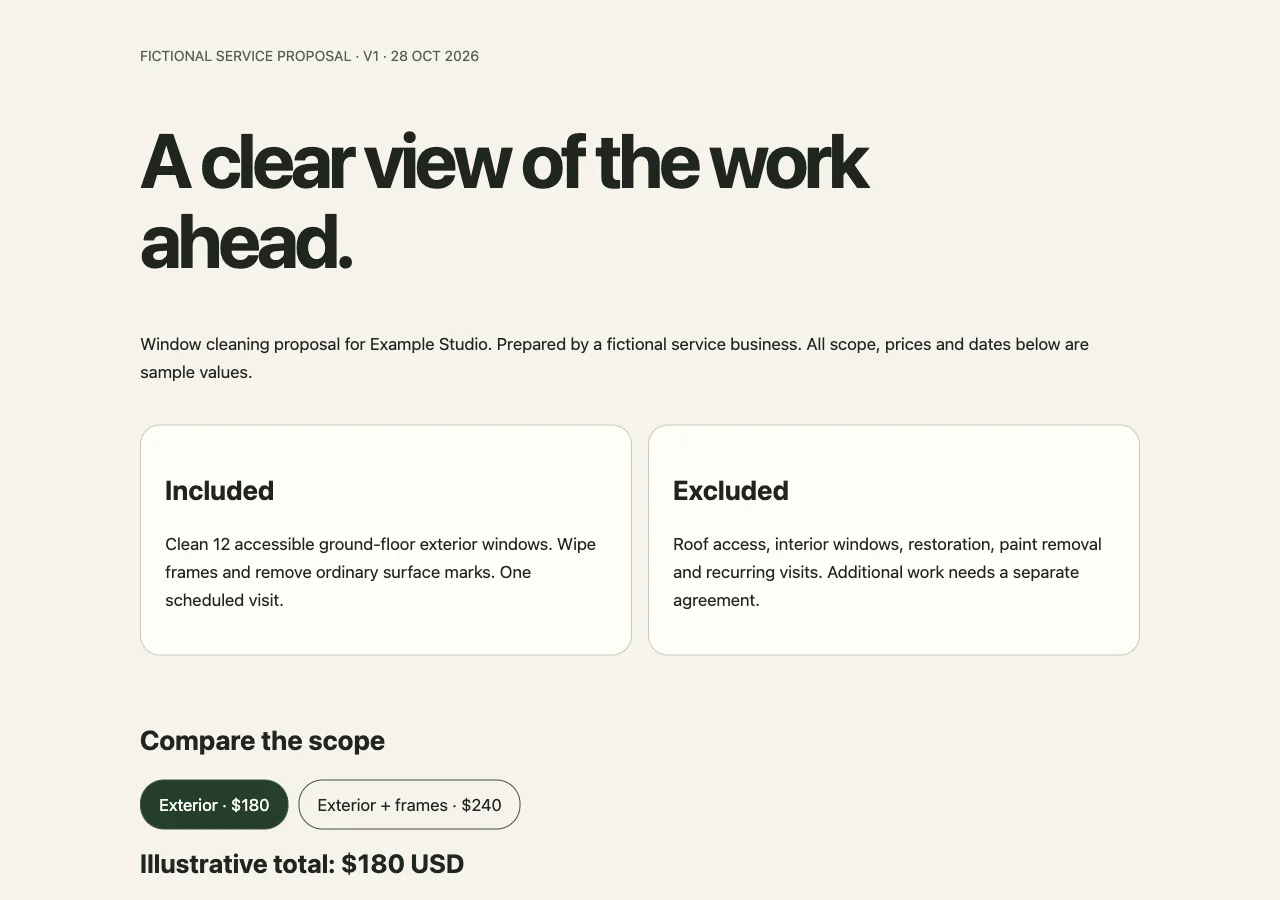
Here is an original, fictional writing example. It is not a completed customer proposal or a quotation.
Project: Exterior window cleaning for a small studio Version: Draft 1 — prepared for discussion Included: Clean the exterior glass on the six ground-floor windows identified in the site photographs. Wipe accessible window frames after cleaning. Not included: Interior glass, high-level access, paint removal, and repair of existing damage. To confirm: Access to the side passage, a suitable service date, and whether interior cleaning should be considered separately. Next step: Reply through our agreed contact channel with the items you would like clarified or revised.
The useful part is its specificity. The recipient can identify the proposed work and see which details remain open.
For a real proposal, replace the fictional content with checked information. Label assumptions. When you include photographs, explain the part of the proposed work each image illustrates and confirm that you can share it with the intended audience.
4. Show options without hiding the base scope
Give options a consistent structure rather than scattering them through the page. In the fictional window-cleaning example, an option table could look like this:
This example intentionally does not set prices or select an option for the customer. In your own page, use verified amounts and make any incomplete detail visible. A decorative selector does not record the client's choice unless a working service receives it.
| Choice | What the reader should understand | What remains to confirm |
|---|---|---|
| Exterior work | The defined ground-floor scope | Access and proposed service date |
| Interior work considered separately | It is outside the base scope | Which windows need assessment and a separate quote |
| A later recurring arrangement | It is a future discussion, not an included service | Frequency and scope after the initial work |
5. Prepare the page and supporting files
Keep the HTML and its required images, styles, and scripts together. If the proposal uses separate files, package them in a ZIP with their folder paths intact.
Before uploading, check that the page has a useful title, clear headings, and contact links pointing to the intended destination. Remove internal notes, secret keys, unrelated customer files, and information that does not belong in the recipient's copy.
Keep your own copy of each version you share. A date or version label helps you identify what a client is referring to when they request a change.
An email link can open the recipient's email application. A form needs a configured submission destination. Test actual receipt before displaying a confirmation such as “Request received.”
6. Match access and availability to the review
Think about how long the proposal needs to stay available. A link that expires midway through the review can interrupt the conversation.
DeployHTML publishes existing static HTML or ZIP content after sign-in. Its free published sites expire after 24 hours. Review the current plan terms and choose an arrangement that covers the intended review period before sending a proposal link.
Decide which details belong on a public page. A recipient can forward an ordinary public URL. Remove unnecessary personal information, private access instructions, and details about other customers. Where confidential content is required, select and verify an access arrangement suitable for that material before sharing.
7. Check the published link as the recipient
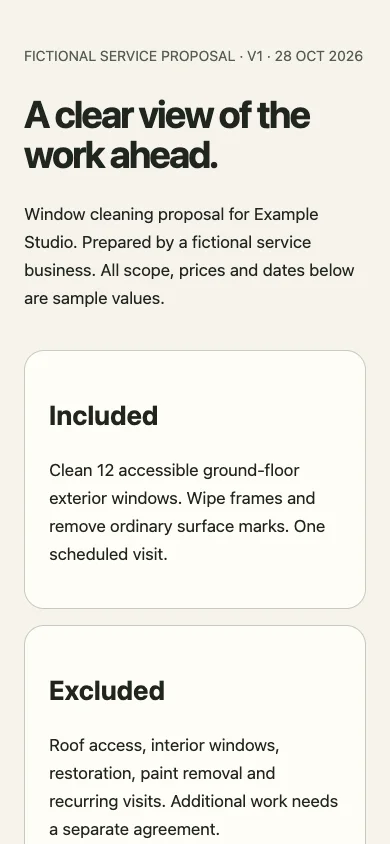
Use an HTML preview to review structure, image paths, spacing, and the narrow-screen layout. The preview may restrict network activity, so external images, embedded services, and forms need another check on the published page.
When the files are ready, start from the HTML-to-link page, then sign in to publish. Before sending the URL:
A message accompanying the link can focus the review. For the fictional proposal above, it could say:
Please review Draft 1, especially the included exterior work and the access question. Let me know whether you want interior cleaning considered separately. This page is for discussion; we will handle any required approval through our agreed process.
Adapt the wording to the next step you actually support. It should not imply that opening the page records agreement.
- Open it on another device or in a browser where you are not signed in.
- Confirm the intended proposal version is visible.
- Read the scope, options, and dates on a phone.
- Open every image and supporting link.
- Test the contact destination and any external dependency.
- Confirm that the page's availability covers the review period.
Keep revisions easy to identify
If the client requests a change, decide whether it affects a detail, the scope, or the available options. Update the visible version label and tell the reader what changed.
For example: “Draft 2 separates the interior work from the exterior scope and adds the access information you provided.” Keep the earlier copy in your records and state which version you want reviewed next.
Do not assume that a saved screenshot or downloaded file reflects a later change. If the previous version is no longer the one to use, say so in the conversation and make the revised page identifiable.
Have an HTML proposal ready? Preview the page, check its files and review period, then publish a link. Send it only after testing what the recipient will see and what their next action will do.
Try the original sample, then publish your own
Download the complete self-contained HTML. Replace the fictional content, verify the contact destination, and open it on a phone before publishing. The sample interactions stay in the browser; they do not save feedback, accept a contract or take payment.
Use a collection to share supporting documents with one materials link. On Basic or Pro, enable page feedback for review notes. Keep agreement, approval and payment in an explicitly verified workflow.
Put it into practice
Send a proposal people can review.
Replace the example content, preview your files and publish when ready.