
How to Host a PDF Online and Share a Link People Can Open
Host a PDF online, choose public or restricted access, and test the exact reader link, downloads, mobile layout, updates and hosting lifetime.
DeployHTML team · 8 min ·
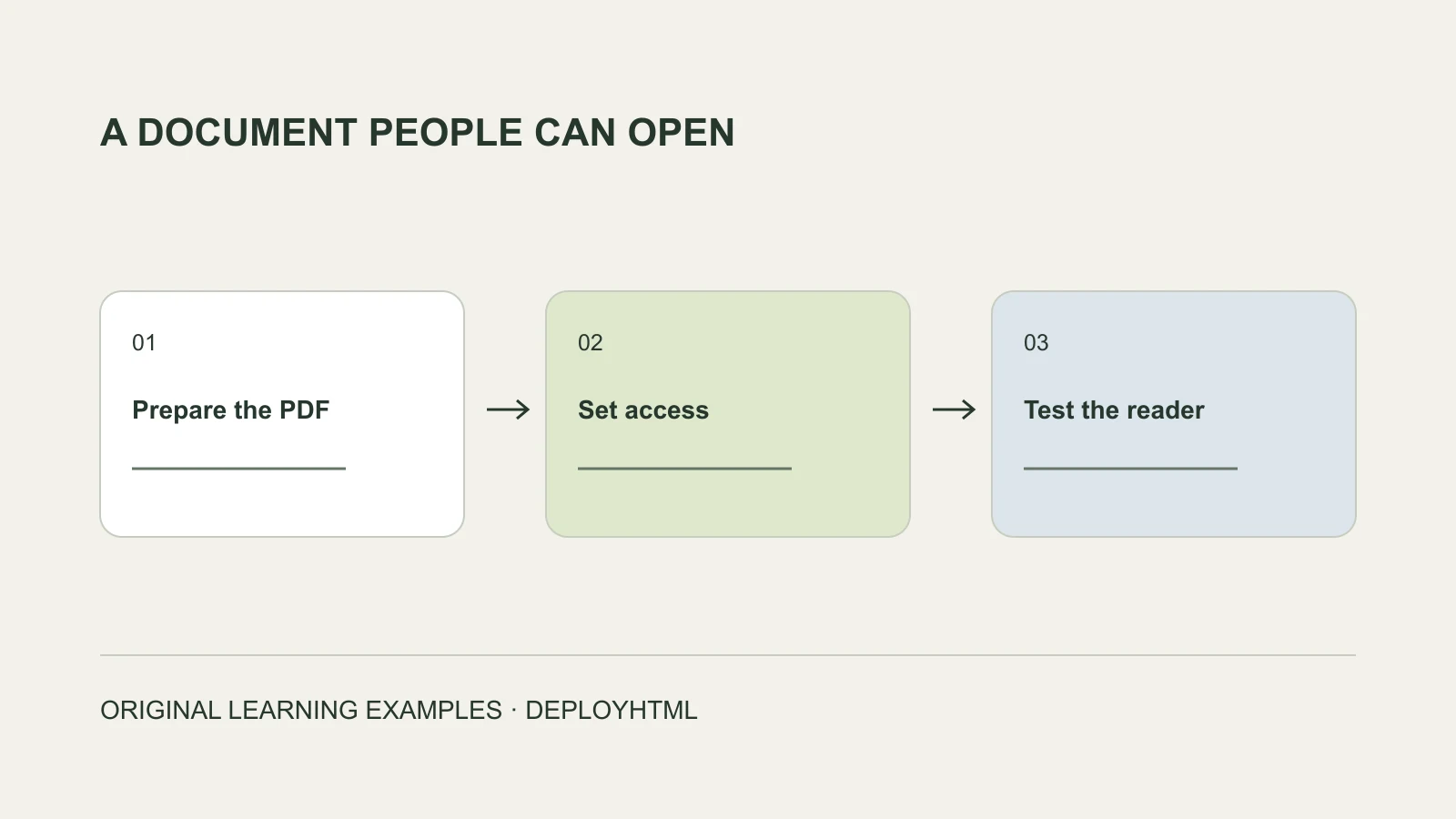
Start with the recipient’s task
To host a PDF online, upload the finished document to a file-sharing or hosting service, set its access rules, and copy the visitor link. Then open that link as the recipient would. The upload is only part of the job: the right people must be able to read the right version for as long as you need it.
Start by deciding what kind of link you want. A public course handout, a private proposal, and a downloadable product catalogue can use the same file format while needing different access and update rules.
Decide who should have access
Choose an access model deliberately:
A link can be forwarded. A URL that is difficult to guess should not be treated as proof that confidential content is protected. Likewise, removing a download button does not establish that someone who can read a document cannot reproduce it.
Before uploading, make a sharing copy. Remove private notes, obsolete pages, internal attachments, or information that the intended audience does not need. Confirm that you have permission to distribute included images and other material.
- Public or anyone-with-link sharing: Useful for material you are comfortable distributing beyond the original recipient.
- Restricted sharing: Useful when named people should authenticate before opening the file.
- A separate review workflow: Useful when comments, approval, or document collaboration are part of the task.
Prepare and inspect the actual PDF
Export the file, then reopen that exported version. Check the first page, page order, tables, headings, and any links. Review it on a narrow screen if most recipients will read it on a phone.
Give the file a descriptive name, such as course-outline.pdf. If you compress a large document, inspect the compressed result: charts and small text still need to be readable. Keep the original source and an approved PDF copy so you can make a controlled update later.
A successful upload will not correct missing pages, outdated prices, an unreadable scan, or a broken hyperlink inside the document. Those are document problems to resolve before sharing.
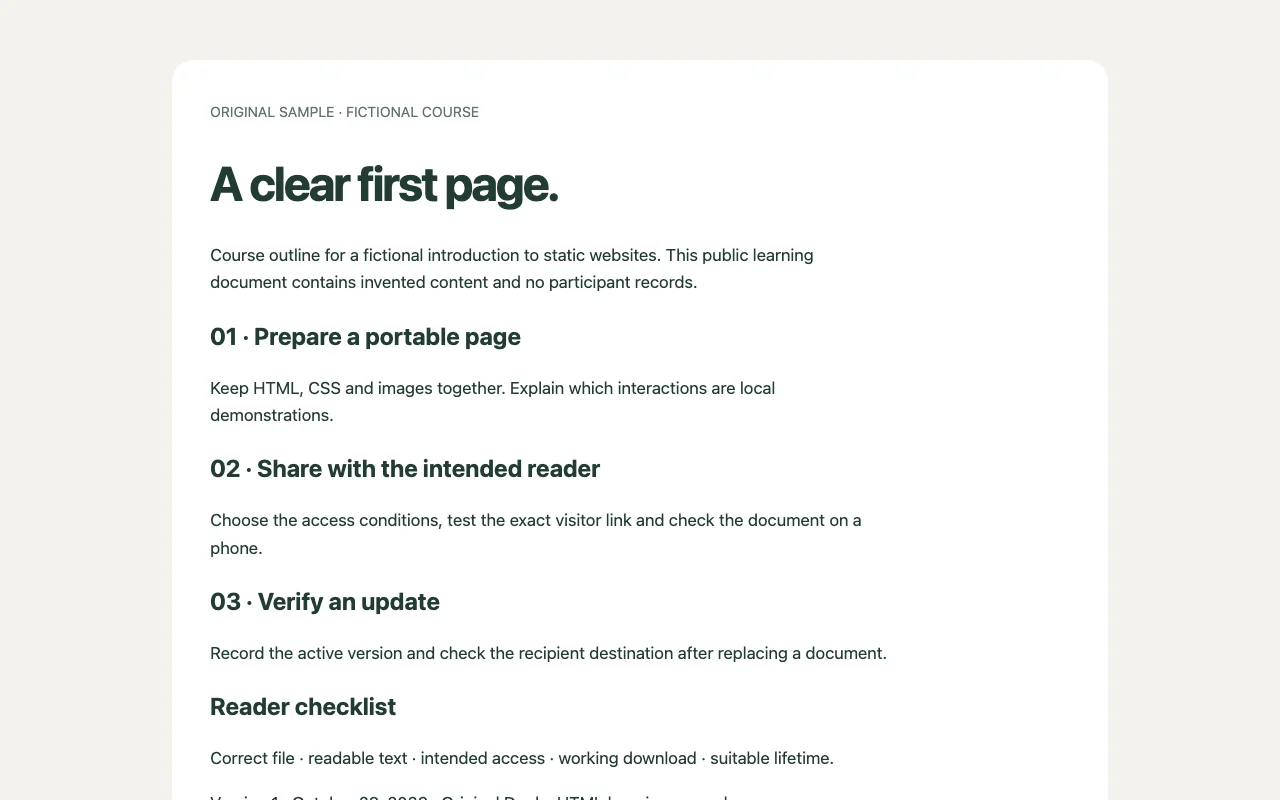
A practical sharing route with Google Drive
If you already use Google Drive, its documented sharing controls provide one way to share a PDF. Upload your document, open its sharing settings, and decide between named recipients and an appropriate general-access setting. Choose the recipient role deliberately; reading a document does not usually require permission to edit it.
Google distinguishes restricted access from “Anyone with the link,” which allows people with the link to open the file without signing into a Google Account. Work or school account policies can affect the options available. Follow the controls your account actually offers rather than assuming public sharing is enabled. Google Drive sharing help.
Copy the sharing link after setting access. If public access is intended, test it while signed out. If access is restricted, test with an authorized recipient account; a signed-out access request may be expected rather than a defect.
These are sharing instructions, not a guarantee about your account’s storage, organizational policy, or future service conditions. Recheck the current settings when the audience changes.
Example: a handout ready for recipients
This is a hypothetical example, not a customer case.
A course organizer wants participants to read a PDF outline on their phones. The outline contains public course information. The organizer wants to update the reading list later without accidentally circulating a private working document.
Their acceptance table could be:
The organizer should test those results on the actual shared link. Seeing the PDF in the owner’s dashboard does not establish recipient access.
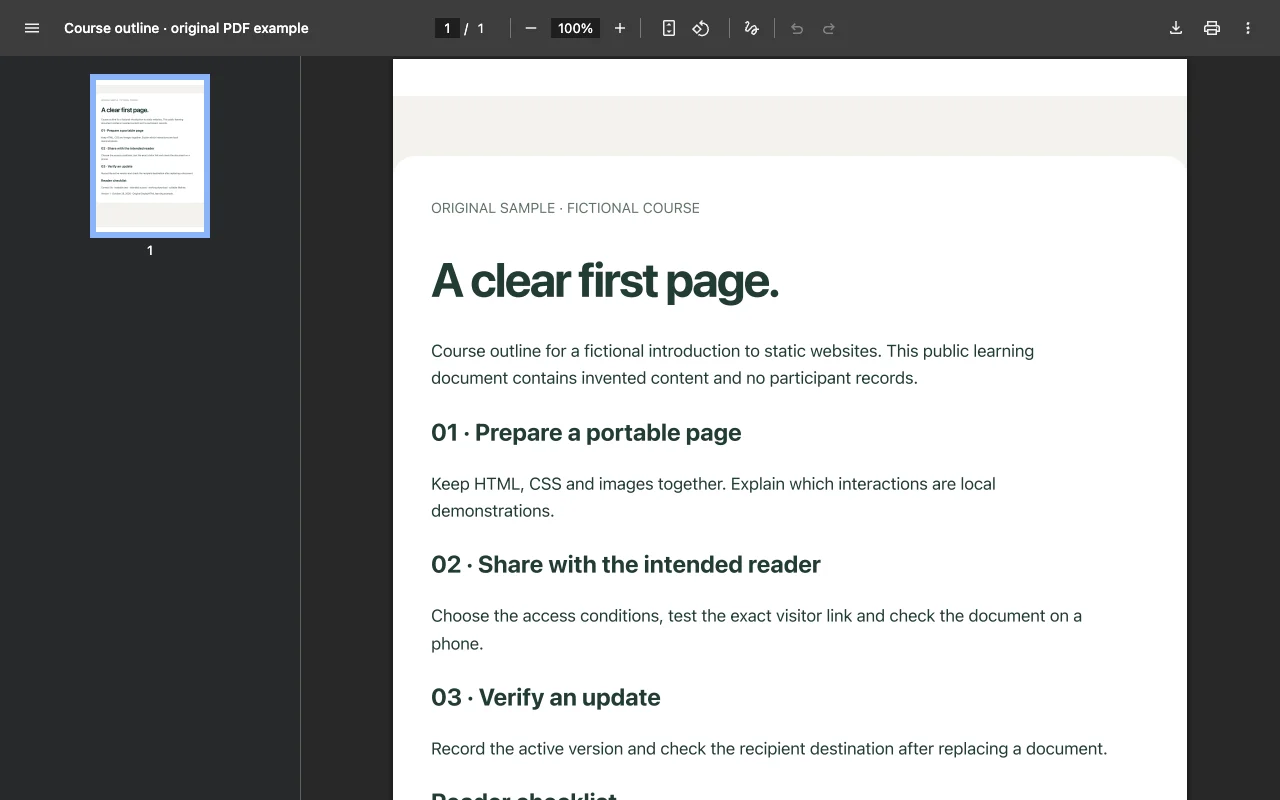
We created an original course-outline document, exported it to PDF and checked the PDF in a browser. The file linked here is a public static example for this guide. That verifies this example destination; it does not establish account-based PDF upload, private access, replacement or expiry behavior in DeployHTML.
| Check | Expected result |
|---|---|
| Recipient opens the copied URL | The approved course outline appears |
| Recipient uses a phone | Headings and essential text remain readable |
| Recipient follows a reference link | It reaches the intended resource |
| Recipient downloads, if offered | The approved PDF is downloaded |
| Organizer revises the reading list | The update behavior is understood and the shared destination is rechecked |
| Organizer checks hosting conditions | Access and lifetime match the course schedule |
Check updates and hosting lifetime
Before putting a PDF link into a newsletter, printed QR code, or application, find out what happens when you replace the file. Some workflows preserve a sharing address; others create a new destination. Do not assume that uploading another file with the same filename updates the previous link.
Keep a short record of the active document, sharing address, intended audience, and places where you used it. After an update, reopen the address and inspect the document. If a reader still shows an older version, confirm the destination and update process before changing unrelated settings.
Also check account activity requirements, resource limits, expiration settings, and what cancellation or deletion does to the link. “Free upload” does not by itself tell you how long a document will remain available.
Troubleshoot a link that does not work
Avoid changing several things at once. Fix the identified problem, then repeat the recipient check.
| Symptom | First check |
|---|---|
| Recipient sees an access request | Sharing permissions and the account they are using |
| Link opens an editor or owner workspace | Whether you copied the visitor sharing address |
| Wrong document appears | File selection and whether the intended update replaced the original |
| PDF opens but text is difficult to read | The exported document and its rendering on the recipient’s device |
| QR code fails | Its exact destination, followed by access and lifetime |
Frequently asked questions
Does hosting a PDF make it a website?
It gives the document an online destination. A reader page can surround the PDF with controls, but that does not turn its pages into a responsive, editable HTML website.
Can I host a PDF for free?
Compare the current service conditions: access, file size, account activity, branding, and lifetime. Choose around the sharing task instead of treating a free upload as a permanent availability promise.
Should I use a short link?
A short link can be convenient, but it adds another destination to maintain. Check both the short link and the document it redirects to.
Put it into practice
Need an interactive page instead?
The sample PDF above is a document. For a browser-ready interactive page, prepare HTML and its static assets before publishing.