
How to host a ZIP website without broken images or CSS
Package a multi-file static website with one index.html, correct relative paths, and a practical checklist for missing styles, images, and nested pages.
DeployHTML team · 6 min ·

Package the website the browser will request
To host a ZIP website, put the finished HTML and its assets into one package, upload it, and test the returned website link. The important part is the folder structure inside the ZIP. A compressed source repository is not necessarily a ready-to-serve website.
Include HTML, CSS, browser JavaScript, images, and fonts that the page actually references. Leave out node_modules, hidden environment files, private keys, and server code. If the source requires a framework build, package the resulting static output instead.
Keep one unambiguous entry: index.html at the ZIP root, or the complete site inside one top-level folder. Multiple competing roots make it unclear which page should open.
index.html
about.html
assets/
  style.css
  app.js
  portrait.webp
Make every asset path match
A reference to ./assets/portrait.webp requires that exact file beside your HTML’s assets folder. File names are case-sensitive: Portrait.webp and portrait.webp are different. A nested page may need ../assets/style.css if the stylesheet lives one directory above it.
A leading slash means the website root; ./ means the current directory. Choose deliberately and test a nested page directly rather than only reaching it from the homepage. Local file paths such as C:\Users\you\photo.webp will not work for another visitor.
If the page looks unstyled after publication, find the stylesheet reference in the HTML and compare it with the ZIP contents. If only an image is missing, repeat that check for its src. Fixing the exact path is more useful than repeatedly uploading the same unchanged package.
<!-- index.html -->
<link rel="stylesheet" href="./assets/style.css">
<img src="./assets/portrait.webp" alt="Your own project portrait">
<script src="./assets/app.js" defer></script>
Upload and understand the package limits
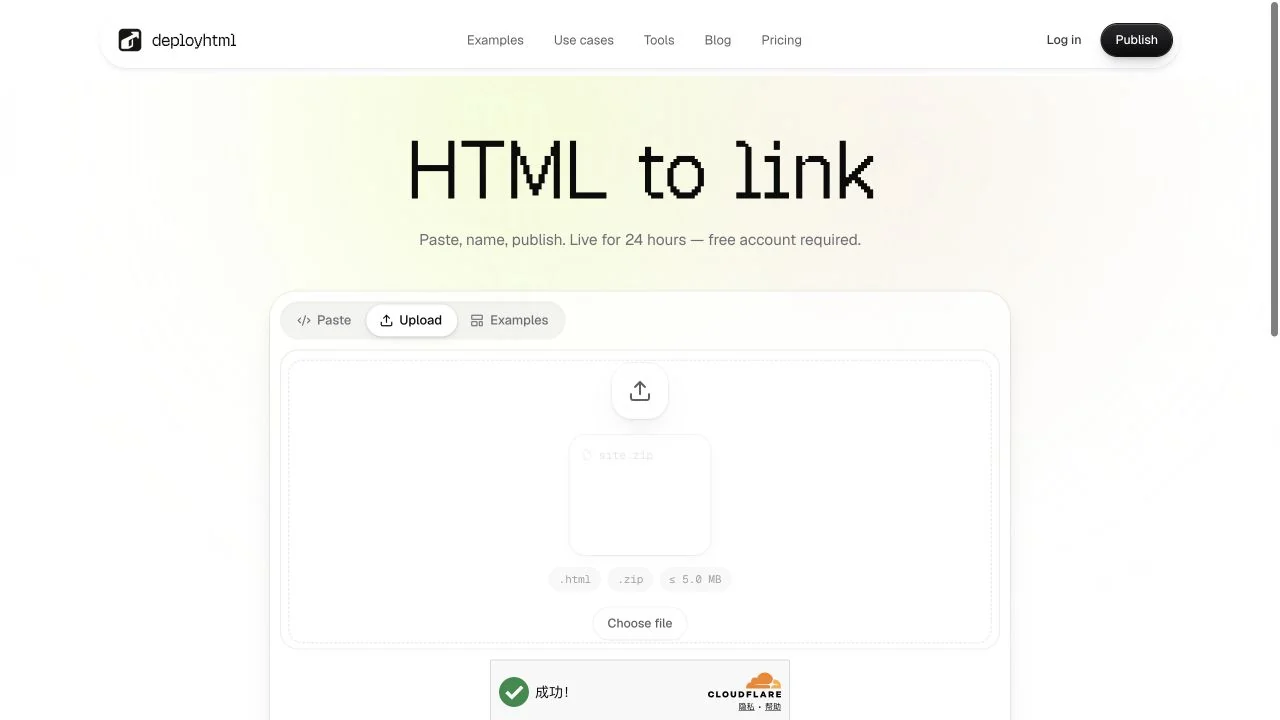
Choose Upload in the publishing tool, select your ZIP, give the site a name, and publish after signing in. Validation checks the expanded package, not just the compressed file size. A very small ZIP can still expand into much more data.
DeployHTML rejects unsafe paths, symbolic links, unsupported executable or server files, duplicates, encrypted archives, ambiguous entry roots, excessive file counts, and oversized expanded content. The current limit is 500 files, with expanded per-upload limits of 5 MB on Free, 25 MB on Basic, and 50 MB on Pro. Check plan availability and account storage as well.
A failed upload leaves the previously active deployment intact. Correct the package and retry the intended publication rather than trying to repair a file through its public URL.
Check nested pages and client-side routes
Open the homepage and each important nested page directly, then refresh. Confirm styles, images, fonts, and scripts load on both paths. Test internal navigation and any downloadable files. A working homepage is only one part of a multi-page site.
For a pre-built single-page app, its client router may need the explicit SPA fallback setting so unknown paths return index.html. That setting is different from missing files: an image request should still resolve to an actual image, not the application shell.
No PHP, Node server, or arbitrary backend is executed by static hosting. If a page depends on a service, verify that service separately and keep its secrets on its own server.
Publish revisions deliberately
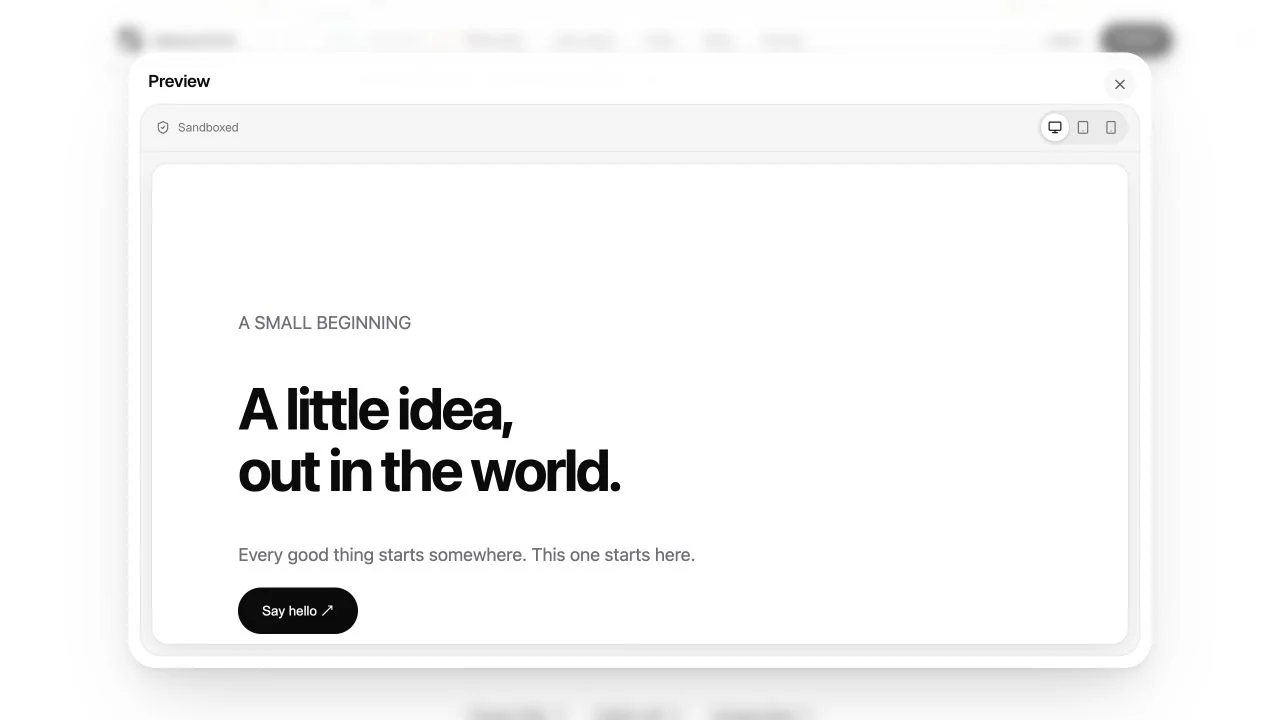
Once the package works, keep updating the same project so its shared address remains useful. Preview before switching the active version, then open the public URL again. On Basic and Pro, retained versions and drafts support a more deliberate review cycle.
Free publishing requires an account, stays public for 24 hours, and includes the badge. Re-uploading within that period does not extend it. Plan the link lifetime around the person you are sending it to.
Single HTML vs ZIP: choose by the files you have
Paste or upload one HTML document when its styles and scripts are included. Use a ZIP when the page depends on separate files. Neither option turns server code or an unbuilt source project into a static website.
| What you have | Use | Check |
|---|---|---|
| One complete self-contained HTML document | Paste or HTML upload | The document contains its CSS and browser JavaScript. |
| HTML plus images, CSS or scripts | ZIP upload | Every relative path matches a file in the ZIP. |
| JSX, TypeScript or a framework source folder | Build first | Upload the finished static output, not the source folder. |
Put it into practice
Your next link starts here.
Try the original example, then publish your own static files.