
How to publish an HTML file online and share its link
Turn a local HTML file into a website link: prepare its assets, preview it, publish, and test the page as a visitor.
DeployHTML team · 6 min ·
Start with a complete page
To publish an HTML file online, upload the document to a static host and share the URL it returns. The visitor opens a working webpage instead of downloading an attachment. A single HTML file can be enough for a portfolio, a product concept, a small calculator, or a browser-based quiz.
Open your file locally first. Confirm its title, viewport tag, content, and main interaction. Remove private notes, API keys, and anything you do not intend to share. Files delivered to a browser can be inspected by their visitors.
Start with a deliberately small deliverable. A folder containing package.json and framework source may still need a build; it is not automatically a static website ready to upload.
Choose Paste or Upload
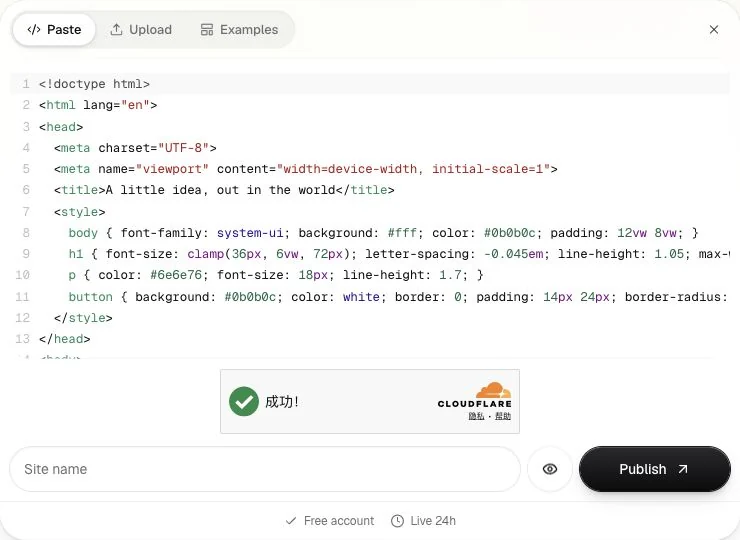
Use Paste when you have one complete HTML document with its CSS and browser JavaScript included. Paste the document itself, without Markdown fences. Give the site a name that you will recognize later in the workspace.
Use Upload for an HTML file or a ZIP of finished static files. If the page references separate stylesheets, images, scripts, or fonts, include those files. A local path such as C:\Users\you\photo.webp only exists on your own machine. Relative paths must match the package.
For example, ./assets/portrait.webp points to an assets folder beside the current HTML file. Check capitalization as well as spelling. If several files are involved, use the ZIP guide before publishing.
Preview before publishing
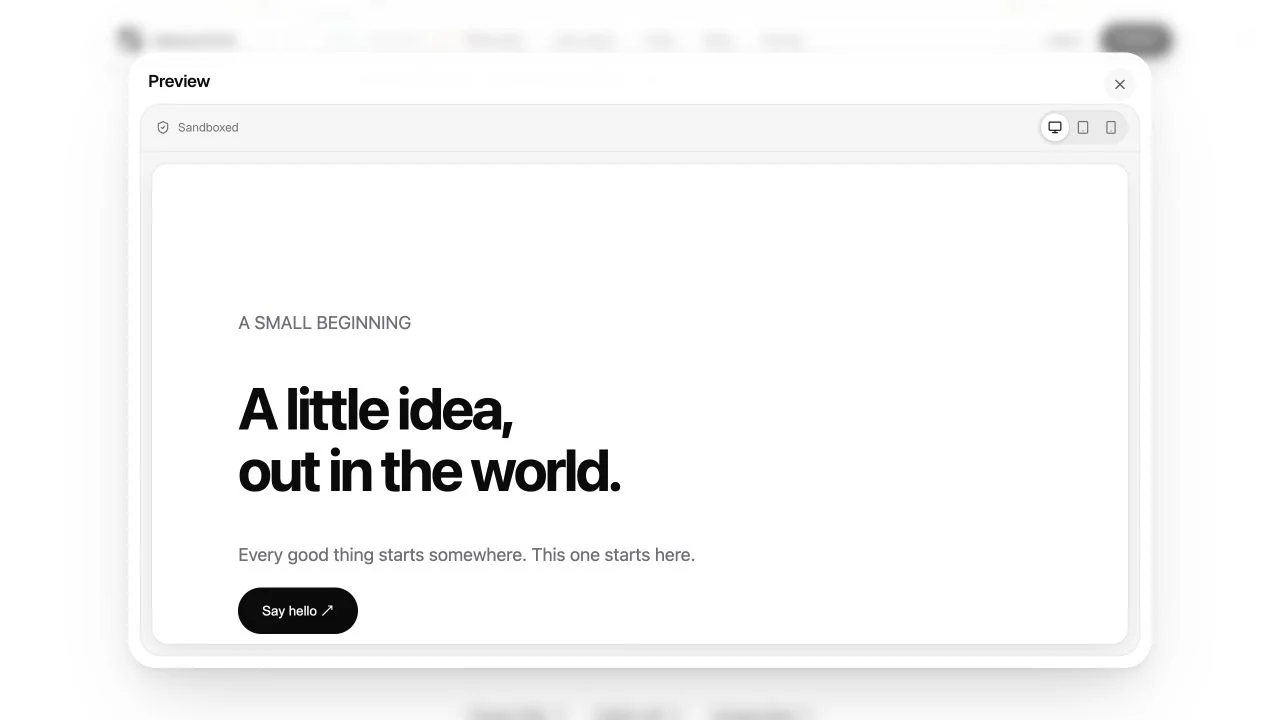
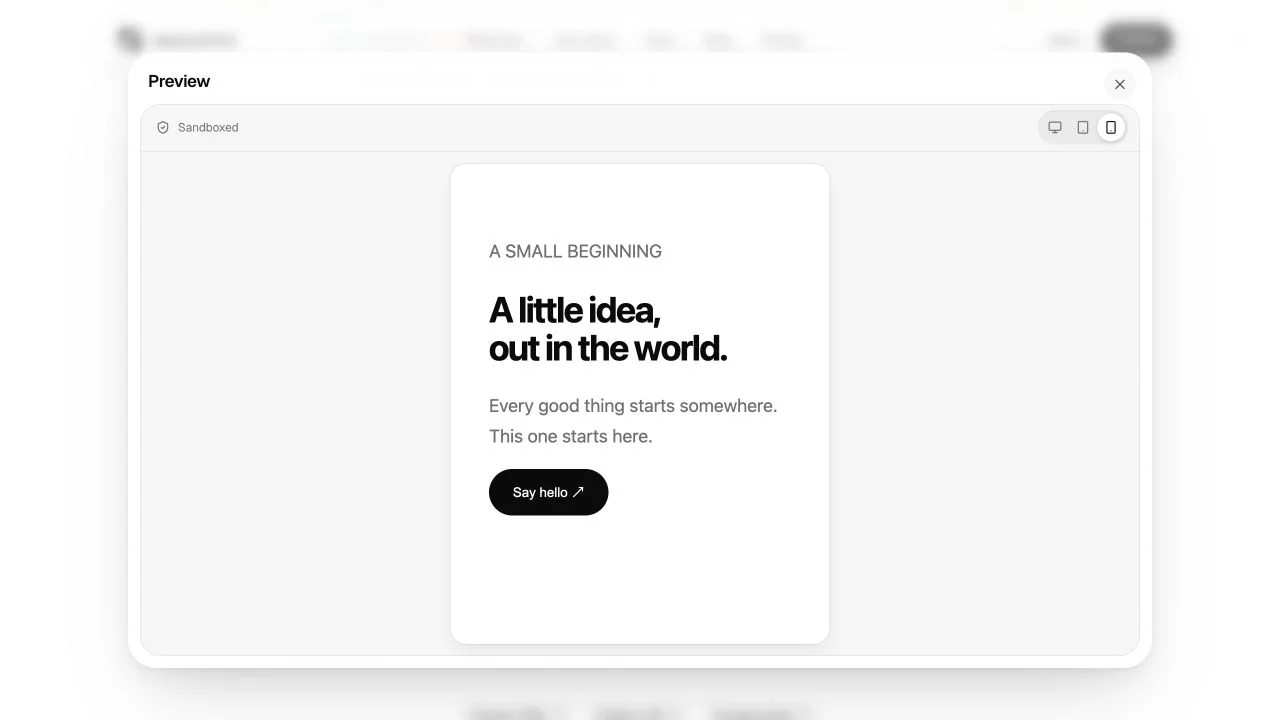
Open Preview and inspect the page at desktop and mobile sizes. Check text wrapping, navigation, buttons, and any content that extends beyond the screen. Try the original sample if you want to learn the controls before using your own file.
The isolated preview restricts network access and blocks form submissions. Use it to check presentation and self-contained browser behavior. Test external services separately on the published URL; a preview cannot establish that an integration succeeds.
Publish and open the real URL
Sign in with Google or an email code when prompted, then publish. Copy the returned URL and open it in another browser session. Look at the page from a recipient’s position: they should not need your workspace session to see a public website.
Repeat the important checks on a phone. Confirm that images, fonts, scripts, nested links, and the main interaction work. For a prototype, explain which actions are demonstrations and which connect to real services.
DeployHTML Free requires an account and provides one active site for 24 hours from activation, with a badge. Re-uploading does not restart that clock. Check current limits or an available paid plan if the link must stay online longer.
Put it into practice
Your next link starts here.
Try the original example, then publish your own static files.