
HTML Tester vs HTML Validator vs Hosting: What to Check Before You Share
Choose HTML preview, selective markup checks or hosting. Follow an original test file through the actual checker, then verify the visitor experience.
DeployHTML team · 8 min ·
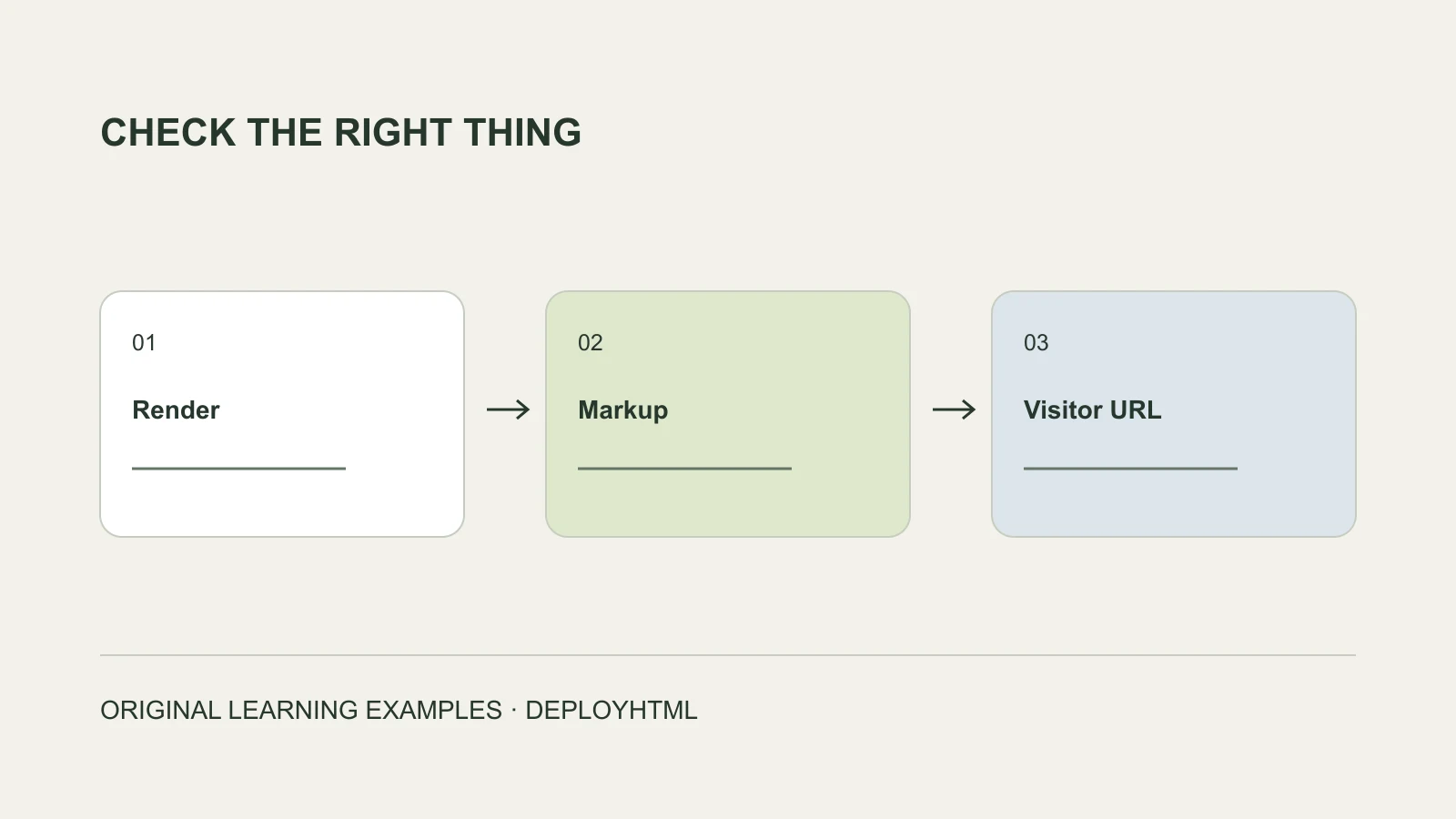
Start with the recipient’s task
Use an HTML tester to inspect what a page displays. Use a markup checker or validator to investigate its structure. Use hosting when someone else needs a real address they can open. Before sending the link, test that published address as a visitor.
These steps answer different questions. A page can look convincing while containing structural errors, missing files, or a form that saves nothing. A successful upload can also leave those problems intact.
You do not need to run every possible check on every draft. Start with the problem in front of you, then finish with the visitor experience you intend to deliver.
Choose the check that matches your question
“HTML tester” is a broad label. Some tools render code, some check selected issues, and some combine an editor with a preview. Read what the specific tool checks before interpreting a green result.
| Your question | Useful first step | What it does not establish |
|---|---|---|
| Does the layout look right? | A browser or HTML preview | Correct markup, working services, or public access |
| Are there issues in the markup? | A checker with a stated scope, or a formal validator | A usable design or complete functioning application |
| Why is this image or script missing? | Inspect its requested URL and the uploaded package | That a different host will repair the reference |
| Can another person open this page? | Publish, then open the visitor URL in a separate session | That every button completes its task |
| Did this form actually submit? | Check the receiving service and its response | That the success message alone represents a saved record |
1. Preview the page to inspect its visible behavior
Begin with the file you plan to share. Look at the heading, spacing, images, navigation, and narrow-screen layout. Use a realistic amount of text, because a tidy placeholder can hide a problem that appears with the final content.
Click the controls relevant to the page’s purpose. For a portfolio, try the project links and contact action. For a quiz, try incomplete and completed answers. For a form, distinguish a visible confirmation from an actual submission.
A preview has its own environment. DeployHTML’s HTML preview is sandboxed; API requests and form submissions are restricted. An integration that cannot run there needs a separate test in the environment where you intend visitors to use it. Moving the page online does not create a missing API or make invalid credentials work.
Treat the preview as a place to inspect the page, and keep the final visitor check on your list.
2. Check markup with a clear understanding of scope
A browser may display a page even when its source contains problems. That makes visual inspection useful, but incomplete.
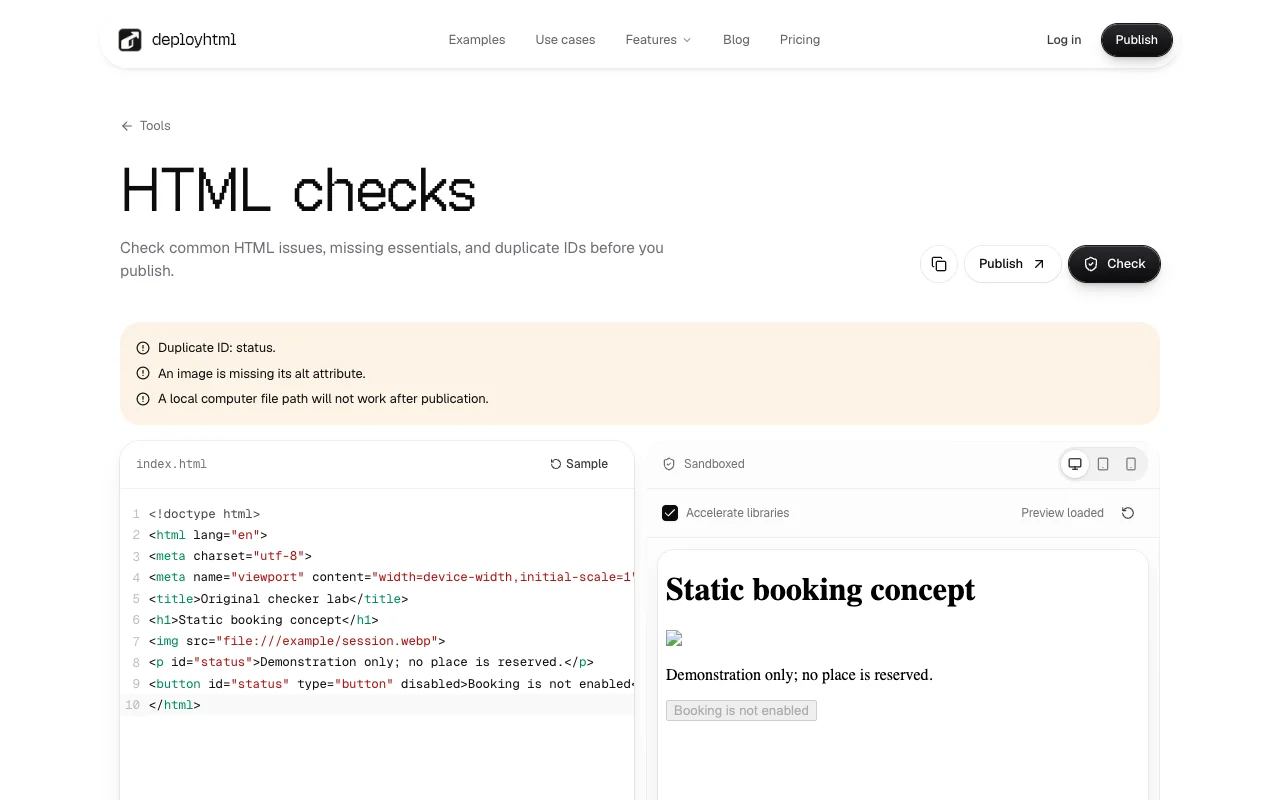
DeployHTML’s HTML checker looks for selected essentials: a doctype, language declaration, title and viewport metadata; duplicate IDs; missing image alt attributes; and certain local computer paths. It is not a full conformance, accessibility, or security validator. It does not prove that every image URL exists or that a service accepts a submission.
For a formal markup check, use a validator appropriate to your document and read its reported rules. W3C explains that a validation result concerns the rules checked by the tool, rather than serving as an overall quality endorsement. W3C Markup Validator help
Fix a reported issue, rerun the relevant check, then revisit the affected behavior. Avoid changing unrelated parts of a page simply to make a warning disappear.
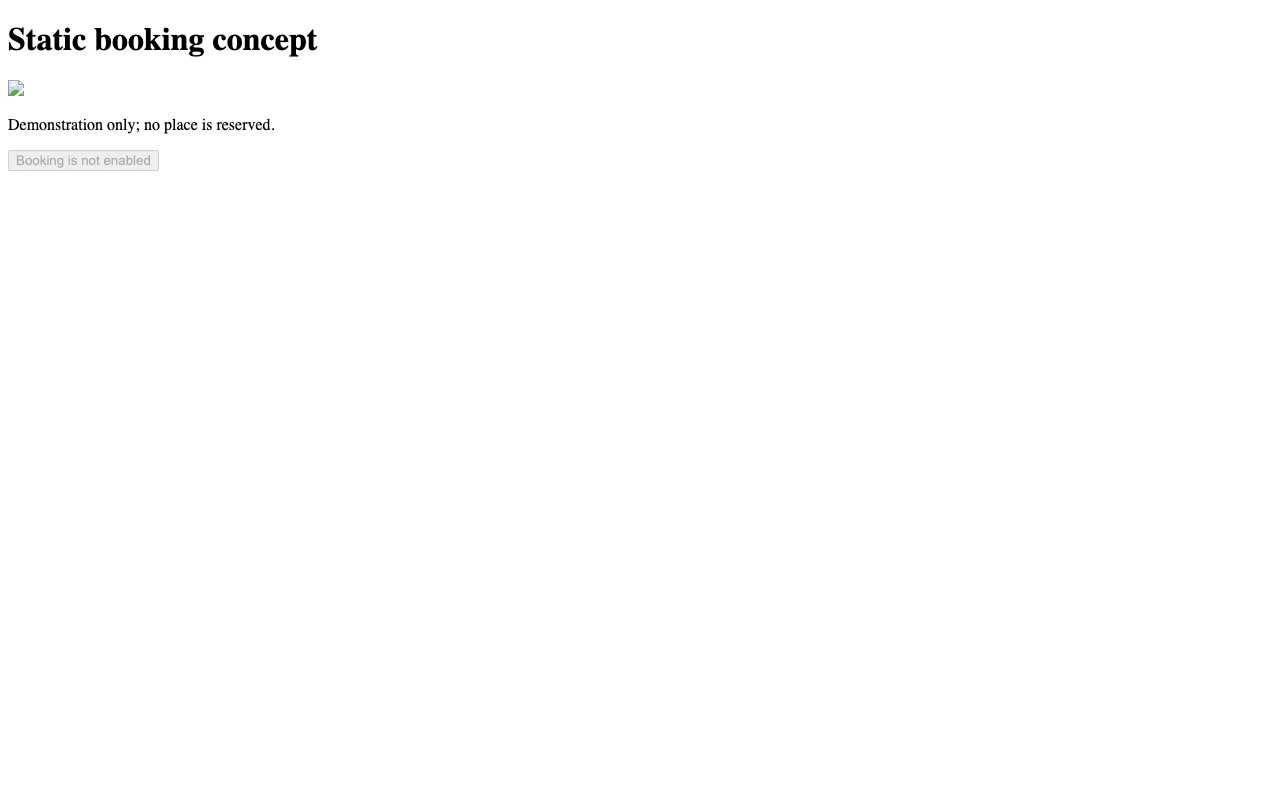
We ran the complete downloadable input through the actual local DeployHTML checker and inspected its duplicate-ID, missing-alt and local-path diagnostics. We also opened the input in a browser. The screenshots record those local checks; they do not demonstrate a working reservation backend.
An example: a page can have more than one kind of problem
The snippets below illustrate two versions of a static concept; neither represents a customer page. The complete downloadable test document above was run through the local checker, as shown in the screenshots.
A heading and button may appear in a preview. That tells you little about the rest of the workflow:
A more explicit version of this section could be:
The IDs are now distinct, and the copy describes the actual demonstration boundary. The alt text is suitable only if it describes the real supplied image. You still need the image file in the package. This change also does not create a booking service: a working reservation flow requires its own implementation and verification.
- The same ID is used twice.
- The image has no alt attribute.
- The image will load only if the referenced file is available at the resolved address.
- The button has no submission behavior in this snippet.
<!-- Before: illustrative fragment -->
<h1>Workshop preview</h1>
<img src="assets/session.webp">
<p id="status">Choose a session.</p>
<button id="status" type="button">Save my place</button>

<!-- After: explicit local demonstration -->
<h1>Workshop preview</h1>
<img src="assets/session.webp" alt="An illustrated workshop agenda">
<p id="booking-status">Demonstration only; no place is reserved.</p>
<button id="booking-demo" type="button" disabled>
  Booking is not enabled
</button>
3. Publish the complete static package
When the page is ready for a visitor check, publish the files the browser needs. A self-contained HTML document can include its styles and scripts. A page with separate images, CSS, or JavaScript needs those files packaged with it.
Keep one clear entry page and preserve its folder structure. If the HTML refers to assets/session.webp, include that file at the corresponding path. A reference to a file on your own computer will not give another person access to it.
Use a suitable static build for framework projects. Source files that depend on a development server are different from the browser-ready output of a build. Static hosting does not run your server process.
DeployHTML’s HTML-to-link entry accepts suitable static HTML or ZIP packages for publishing after sign-in. Choose a lifetime that matches the task: DeployHTML Free links last 24 hours, so an ongoing resource needs an appropriate ongoing hosting arrangement.
4. Test the actual published address
Copy the visitor URL, rather than the editor, account dashboard, or local preview address. Open it in a separate browser session, without relying on your owner login.
Check the result in the order a recipient will experience it:
If a check fails, record the exact symptom and address. “The nested project page requests the wrong image URL” gives you a better next step than “hosting is broken.” Correct one cause, publish the intended update, and repeat the affected check.
- The intended page opens and shows the current content.
- Styles, images, fonts, and scripts load from the published package or their intended external sources.
- Navigation and important actions reach the correct destination.
- A narrower screen remains usable, with readable content and accessible controls.
- Any receiving service confirms the expected operation, where relevant.
- The sharing lifetime and access conditions are appropriate for the recipient.
Frequently asked questions
Is a formatted HTML file validated?
Formatting improves readability. It does not establish that the markup follows every applicable rule, that scripts work, or that a visitor can access the page. Use the relevant checks separately.
Does passing an HTML checker mean the page is secure?
No. A limited checker reports only its supported checks. Markup validation also does not replace security review, permissions, or testing of the services a page uses.
Can I send someone my preview link?
Check what the preview actually provides. A local or account-bound preview may depend on your session or contain temporary resources. Publish a suitable version and test its visitor address before sharing it as a public page.
Why does the page work in one place and fail in another?
Compare the environments: resource addresses, available files, preview restrictions, external dependencies, and access conditions. Start with the first failed request or action, rather than assuming one tool’s result describes every environment.
Put it into practice
Your next link starts here.
Try the original example, then publish your own static files.